Office computers play a central role in daily business operations. When devices become slow, unreliable or unable to support modern software, they can affect employee productivity and increase IT costs. Knowing when to replace office computers helps businesses avoid unnecessary downtime and maintain a reliable work environment.There is no single replacement schedule that works for every business. The right time depends on computer age, performance, security, hardware condition and the requirements of the software employees use every day.
Start With Computer Performance
Slow performance is one of the clearest signs that an office computer may need to be replaced. Employees may experience long startup times, delayed application responses, system freezes or frequent crashes.
These problems can become more serious when employees use multiple applications at the same time. A computer that was sufficient several years ago may struggle with modern web applications, cloud platforms, video conferencing tools and business software.
Businesses should monitor how often performance issues occur rather than treating each slowdown as an isolated problem. Frequent problems can indicate that the computer no longer meets the demands of the workplace.
Consider The Age Of Your Computers
The age of a computer is an important factor when deciding whether replacement is necessary. Older devices are more likely to have outdated processors, limited memory, aging storage drives and components that are difficult or expensive to replace.
Many businesses use computers for several years before replacing them. However, age alone should not determine the decision. A newer computer with poor maintenance can perform worse than an older device that has been properly managed.
A better approach is to evaluate the computer’s age together with its performance, security and compatibility with current business requirements.
Check If Hardware Upgrades Are Still Practical
Not every slow computer needs immediate replacement. Some devices can receive hardware upgrades that extend their useful life.
Adding RAM can improve performance when employees regularly work with multiple applications. Replacing a traditional hard disk drive with a solid-state drive can also significantly improve startup times and application loading.
However, upgrades have limits. If a computer has an outdated processor, limited upgrade options, recurring hardware failures and compatibility problems, investing more money into it may not be cost-effective.
Businesses should compare the expected cost of upgrades with the price of replacing the device with a newer computer.
Watch For Security Problems
Security should be a major consideration when evaluating older office computers. Devices that no longer receive operating system updates or security patches can create additional risks for the business.
Unsupported software and outdated hardware can make it more difficult to maintain a secure IT environment. Employees may also continue using outdated applications because newer versions cannot run properly on older computers.
A replacement may be necessary when a computer cannot support current operating systems, security software, encryption technologies or other security requirements.
Keeping outdated devices in service simply because they still turn on can create unnecessary security exposure.
Check Software Compatibility
Business software continues to evolve. Cloud applications, accounting platforms, customer relationship management systems, communication tools and productivity software may require newer operating systems or hardware capabilities.
Compatibility problems can appear when employees cannot install current software versions or experience frequent errors while using them.
Businesses should review the software requirements for the applications their employees depend on. If an office computer cannot reliably support those applications, replacement may be more practical than trying to maintain an increasingly outdated system.
Pay Attention To Frequent Repairs
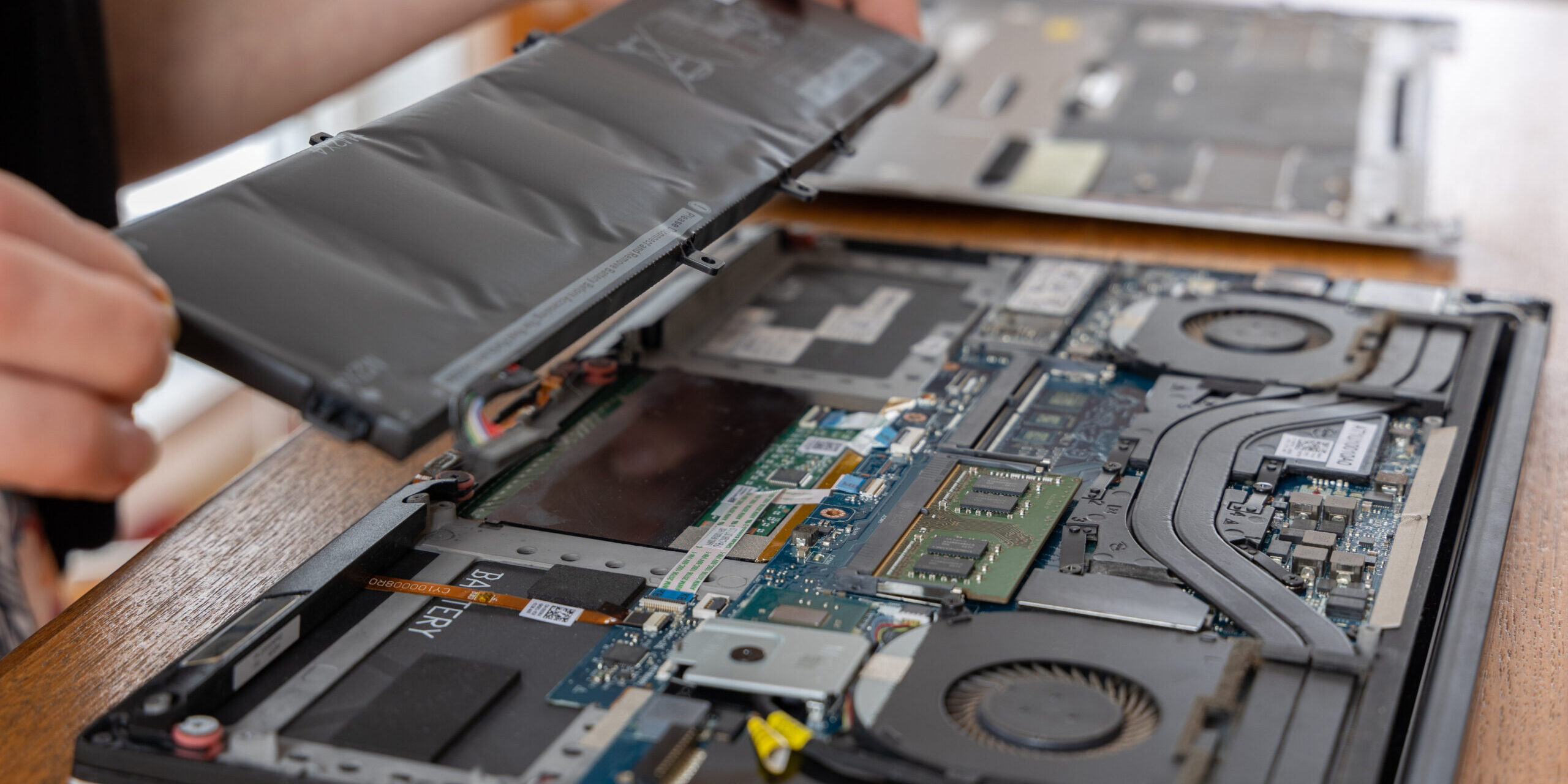
Repeated repairs are another important warning sign. A single failed component does not necessarily mean that a computer should be replaced. Several hardware problems over a short period can tell a different story.
Common issues include failing storage drives, damaged ports, overheating, battery degradation on laptops and malfunctioning power components.
Repair costs should be evaluated alongside the computer’s age and remaining useful life. If a business is repeatedly paying to keep an aging device operational, replacing it may provide better long-term value.
Evaluate Employee Productivity
Computer performance has a direct effect on how employees complete their work. Delays of a few seconds may appear insignificant but can become costly when they occur throughout the workday.
Employees who regularly wait for applications to open, files to load or systems to respond may lose productive time. Frequent crashes can create additional disruption when work must be restarted.
Businesses should consider how computer performance affects specific job functions. Employees working with large files, databases, design software, video content or multiple applications may need more capable systems than employees performing basic administrative tasks.
The goal is not to give every employee the most powerful computer available. The goal is to provide hardware that supports the requirements of each role efficiently.
Look At The Total Cost Of Ownership
The purchase price of a computer is only one part of its cost. Older devices can require additional maintenance, repairs, troubleshooting, and IT support.
Businesses should consider the total cost of ownership when deciding whether to replace office computers. This includes hardware expenses, repair costs, employee downtime, software compatibility issues and the amount of IT support required to keep older devices operational.
A newer computer may have a higher initial cost but lower maintenance requirements. It can also provide better performance and compatibility with current business applications.
This makes replacement a business decision rather than simply a hardware purchase.
Create A Replacement Plan
Replacing every office computer at the same time is not always necessary. A phased replacement plan can help businesses manage costs while keeping critical systems current.
Start by creating an inventory of all office computers. Record each device’s age, specifications, operating system, location, primary user and current condition.
Next, identify which computers present the greatest performance or security concerns. Prioritize devices that are no longer supported, frequently fail or significantly affect employee productivity.
Businesses can then replace computers in stages based on operational needs and available budget.
Signs That A Computer Should Be Replaced
Several warning signs can indicate that an office computer has reached the end of its useful life.
- Frequent crashes or system freezes
- Slow startup and application loading
- Hardware components that fail repeatedly
- Inability to install current software
- Lack of operating system or security support
- Insufficient RAM or storage for business applications
- Poor performance during video conferencing
- Increasing repair and maintenance costs
- Compatibility problems with company systems
- Noticeable impact on employee productivity
One issue may not justify replacement on its own. Several of these problems occurring together are a stronger indication that the device should be evaluated for replacement.
How TechCare Computers Can Help
At TechCare Computers, we help businesses evaluate their existing computer equipment and determine when replacement makes sense.
Our IT services can include:
Hardware Assessment: Identify aging devices, performance limitations and potential hardware failures.
Computer Replacement Planning: Develop a replacement strategy based on business requirements, budget and employee needs.
System Setup: Configure new computers with the required operating systems, applications, security settings and user accounts.
Data Migration: Transfer important files and business data while minimizing disruption during the transition.
Ongoing IT Support: Monitor computer performance and help businesses maintain reliable and secure systems.
Replacing office computers should not be based only on how old a device is. Performance, security, software compatibility, repair costs and employee productivity all provide important information when making the decision.
If your office computers are slowing down or creating recurring IT problems, contact TechCare Computers to evaluate your current systems and develop a practical replacement plan.